When "Applications" is selected in the "Type" field;
If you want to open any application and run when the relevant menu node is clicked, Type Select the "Applications" option from the field. When Apps are selected, in the General Settings panel, The "Apps" field will be visible.
In the "Applications" area, click Start Process, Fill Form, Process Archive, Form Archive, External Web Application, Archive Manager and Analysis options are listed.
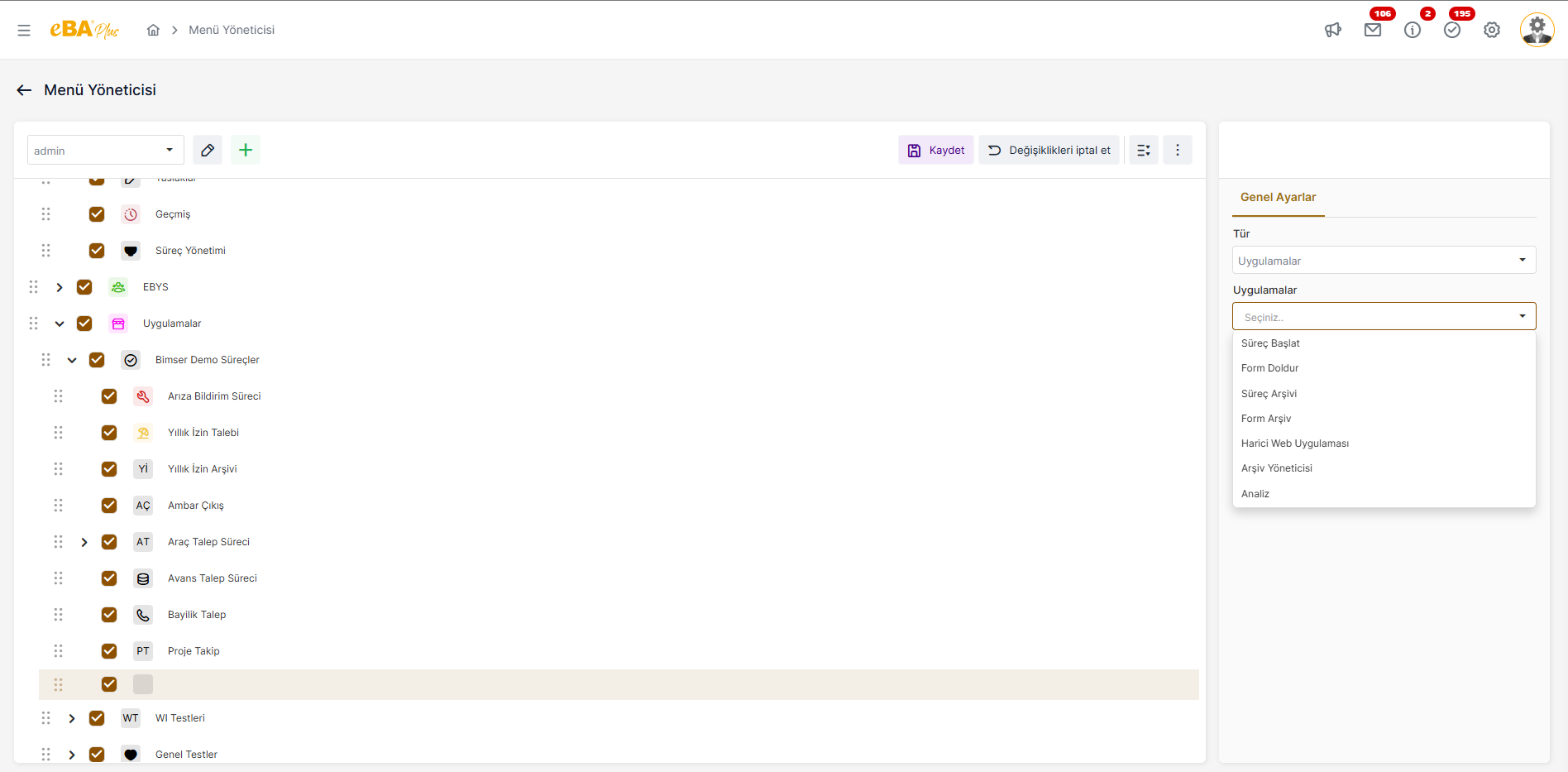
Start Process :
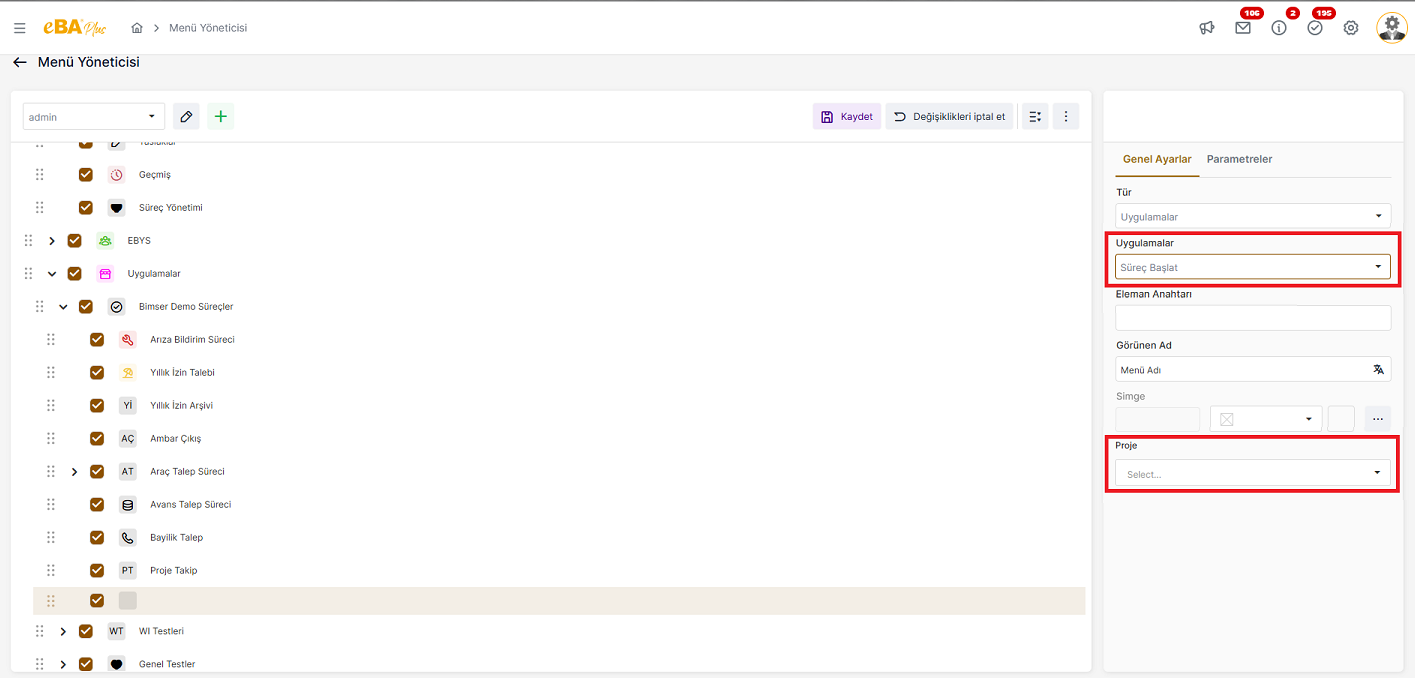
If one of the processes defined in the system is desired to be started when the relevant menu node is clicked, the "Start Process" option in the Applications section for that menu node is selected. When the Start Process option is selected, the "Project" field becomes visible.
In this field, all projects created in the system are listed, and when this menu node is clicked, Whichever process is desired to be initiated, the relevant project is selected from this area.
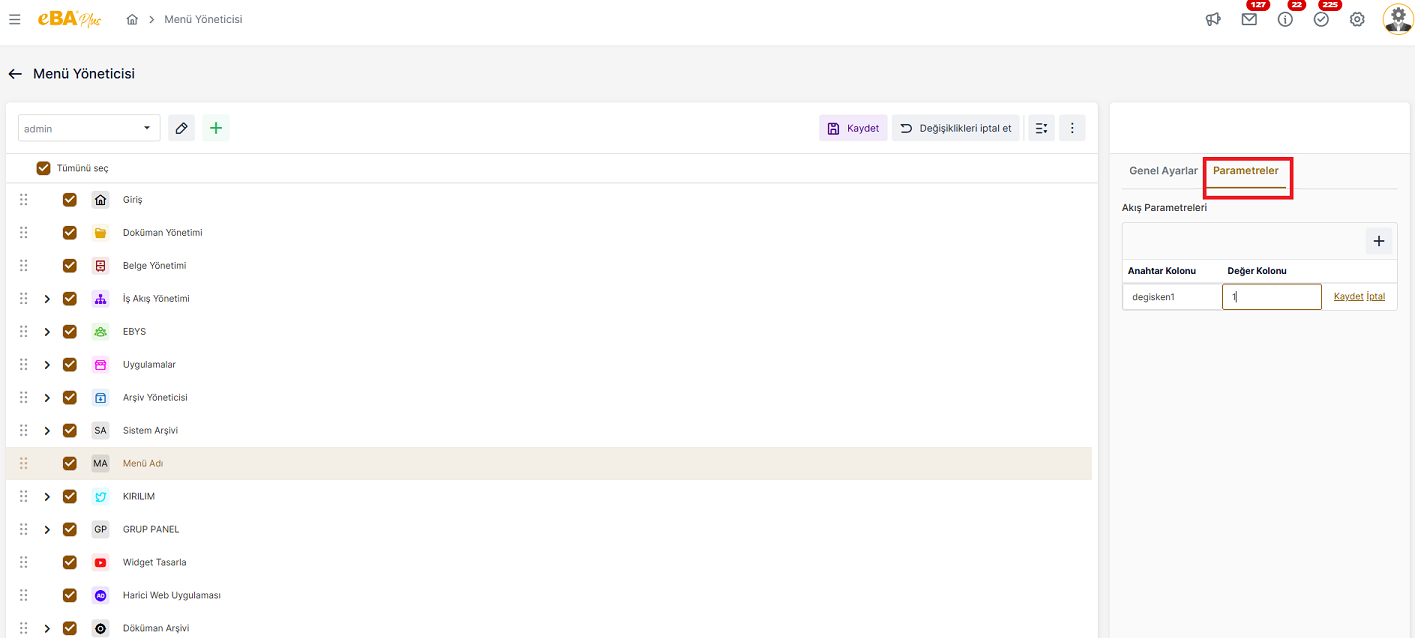
Specific to the Start Process type, when "Start Process" is selected from the "Applications" section, The "Parameters " tab becomes active. With this field, the end user can access the relevant menu node When you click on it, parameters can be sent to the flow of the process that has been started. In the "Parameters" tab Parameters determined by the + button are added to the found table structure and saved. Here In the "Key Column " and " Value Column " sections, the id and value of the parameter to be sent to the flow fields are determined by the person who added the menu.
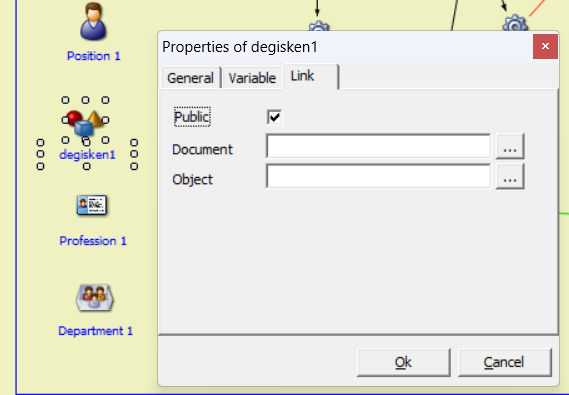
The part to be considered here is the flow part of the process to which the parameter is to be sent, A variable object with the same name as the parameter key written in the "Key Column " field is the necessity of adding. With the name of the variable object added to the flow side, in the menu node If the given key code is not the same, the parameter sent to the stream when the menu node is clicked value cannot be satisfied by the flow. At the same time, when the menu node is clicked, the sent In order for the parameter to be captured and used on the streaming side, the corresponding streaming variable must be The public field must be checked in the properties.
Upon clicking on the menu node, the need to send parameters to the flow is generally It is used in cases where different operations are required in the flow according to the parameter. For example, the same Let's imagine that the process can be initiated by different authority groups. Same process, different menu profiles as separate nodes and authorized to different people. This process In order to understand which person in the authorization group started when it started, each of the relevant process Different values (such as 1,2,3) can be set to the menu node with the same key code. Thus, the flow On the side, by checking the value of the relevant parameter; 1 by the person defined in the x authorization group and 2 can be inferred as if it was initiated by the person defined in the y authorization group, and The flow can be advanced through different branches.
Fill Form :
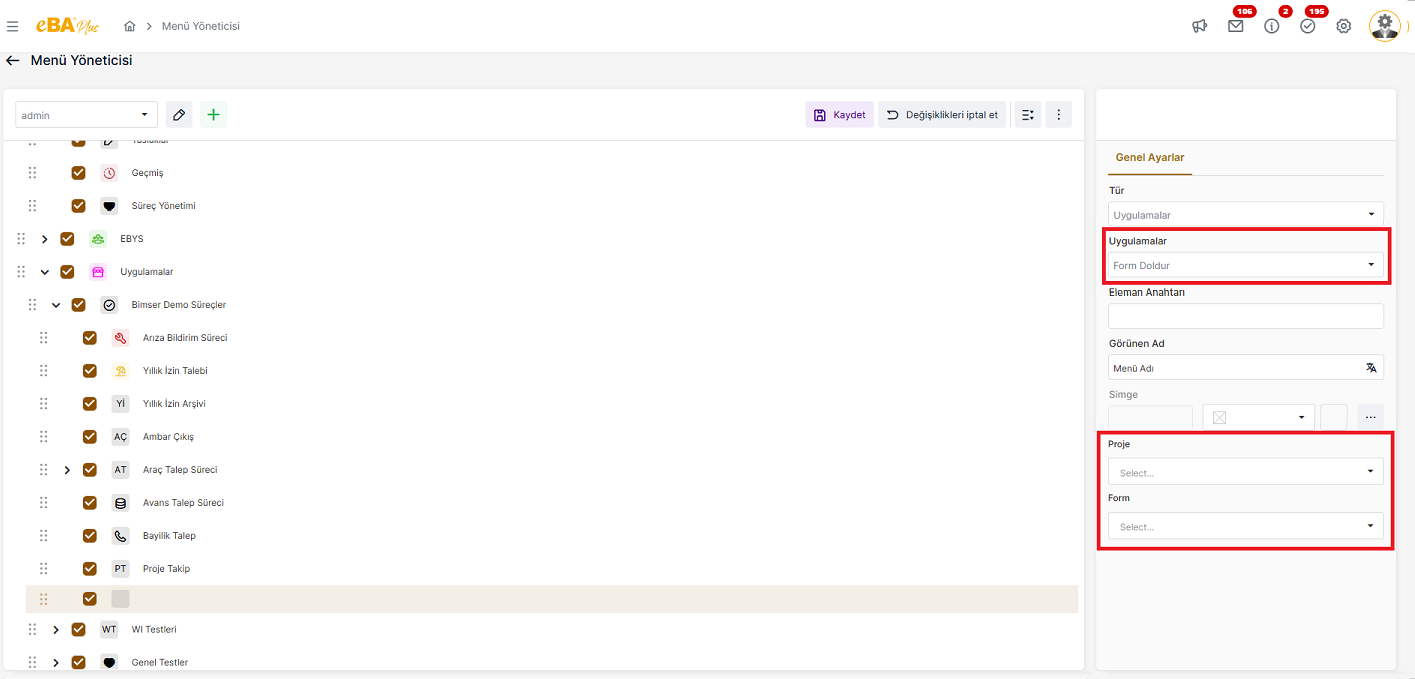
If a form is requested to be opened, filled in and saved when the relevant menu node is clicked, the "Fill Form" option in the Applications section for that menu node is selected. When the Fill Form option is selected, the "Project " and "Form " fields are visible.
In the project area, all projects defined in the system are listed. When the relevant node is clicked, which If you want to open a form for the project, that project should be selected from this field. In the form field, click "Project" The forms of the selected project are listed. When the relevant menu node is clicked, which form If it is desired to be opened, the selection of that form should be made from this field.
Process Archive :
It is the menu node option used to create standard archive structures of the projects created in the system without writing queries. In the "Applications" area, this option When selected, the "Project", "Edit" and "Parameter " fields are visible.
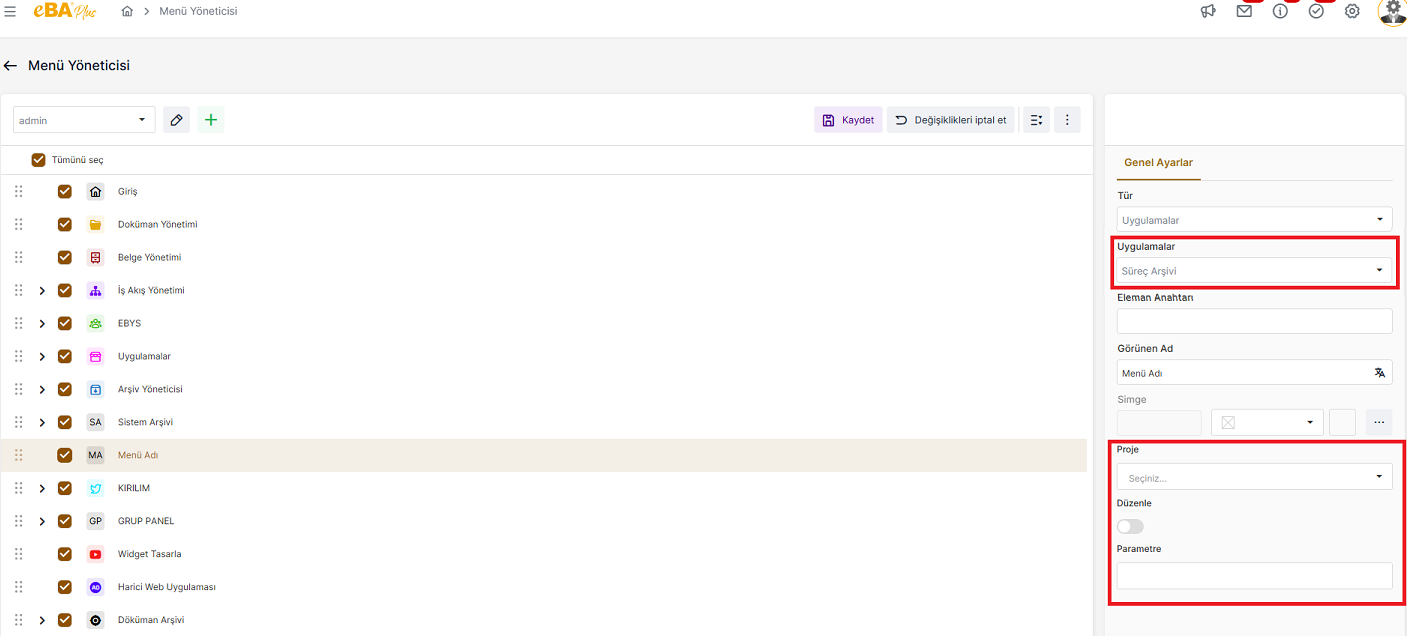
Project : In this field, all processes defined in the system are listed. Which process archive is created If desired, the relevant project should be selected from this field.
Edit : Whether editing authority will be given in the archive is determined from this field.
Parameter : If a parameter value is desired to be sent to the archive, it is specified in this field.
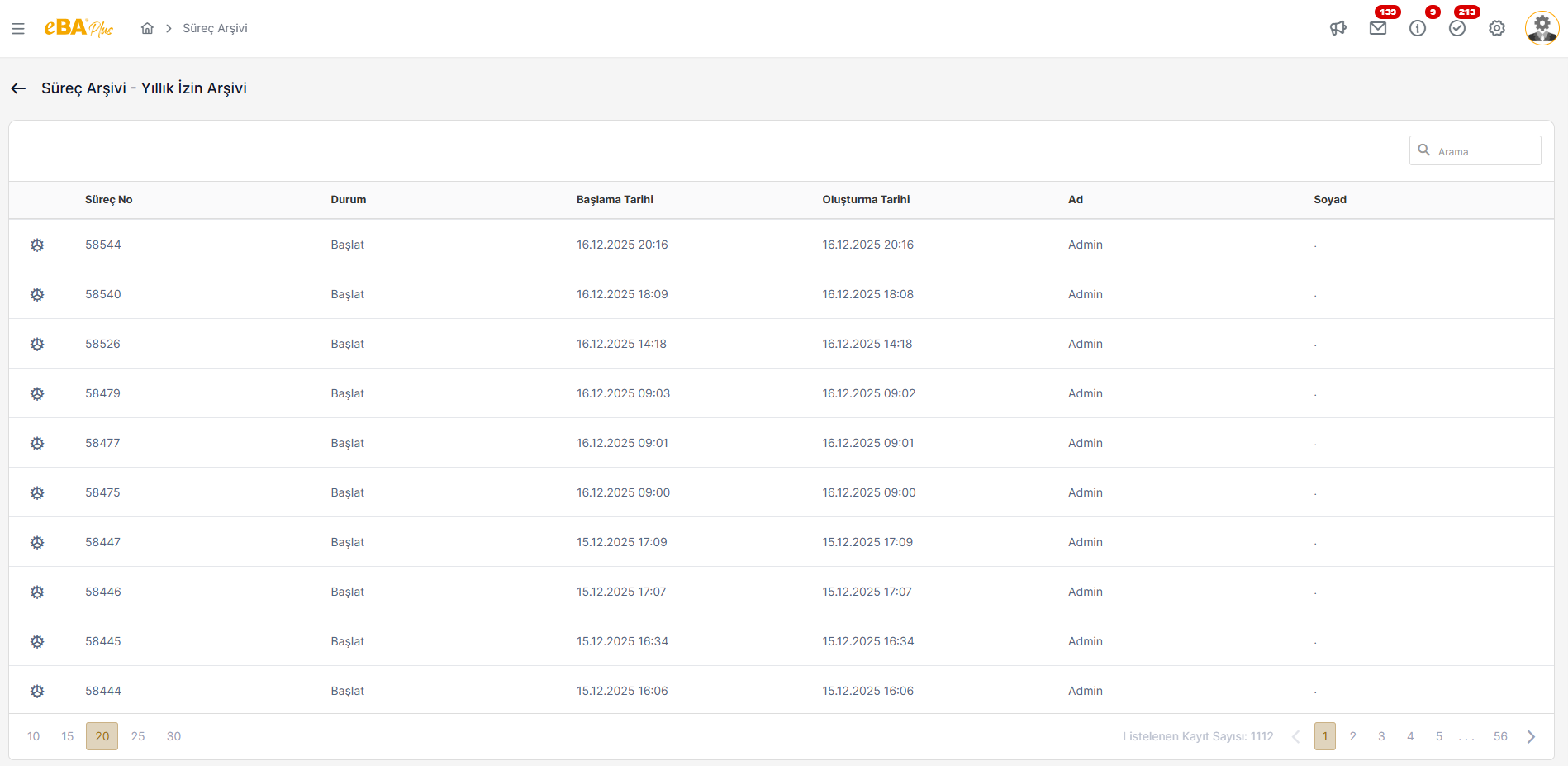
When a menu node created in the "Process Archive" type is clicked on the menu, the The archive structure will be seen as follows.
Form Archive :
It is the menu node option used to create standard archive structures of the projects created in the system without writing queries. In the "Applications" area, this option When selected, the "Project", "Form", "Edit" and "Parameter " fields are visible.
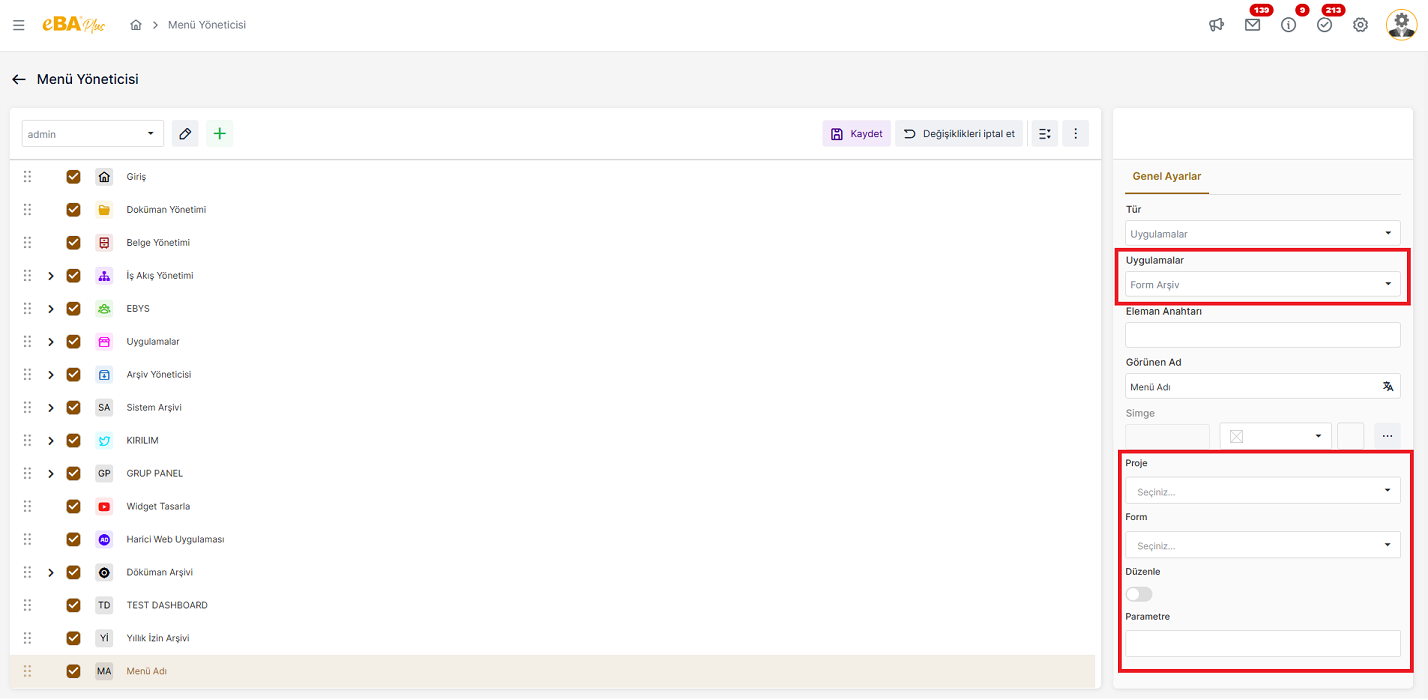
Project : In this field, all processes defined in the system are listed. Which process form archive to create If desired, the relevant project should be selected from this field.
Form : Forms for the process selected from the project area are listed in this field. Archive of which form If you want to create it, that form should be selected from this field.
Edit : Whether editing authority will be given in the archive is determined from this field.
Parameter : If a parameter value is desired to be sent to the archive, it is specified in this field.
When the form is archived, clicking on one of the lines listed on the archive screen The form screen of the id opens. In the form archive, there is only access to process forms. Process archive and when one of the lines listed on the archive screen is clicked, the relevant process The form and flow information screens open. In other words, the process archives both the form and flow information of the relevant process. is reached.
External Web Application :
When a menu node is clicked in eBAPlus, this menu type is used if an external web application is desired. "Applications" When this option is selected in the field, the " Url ", " Opening Target " and " Encrypt " fields will be visible.
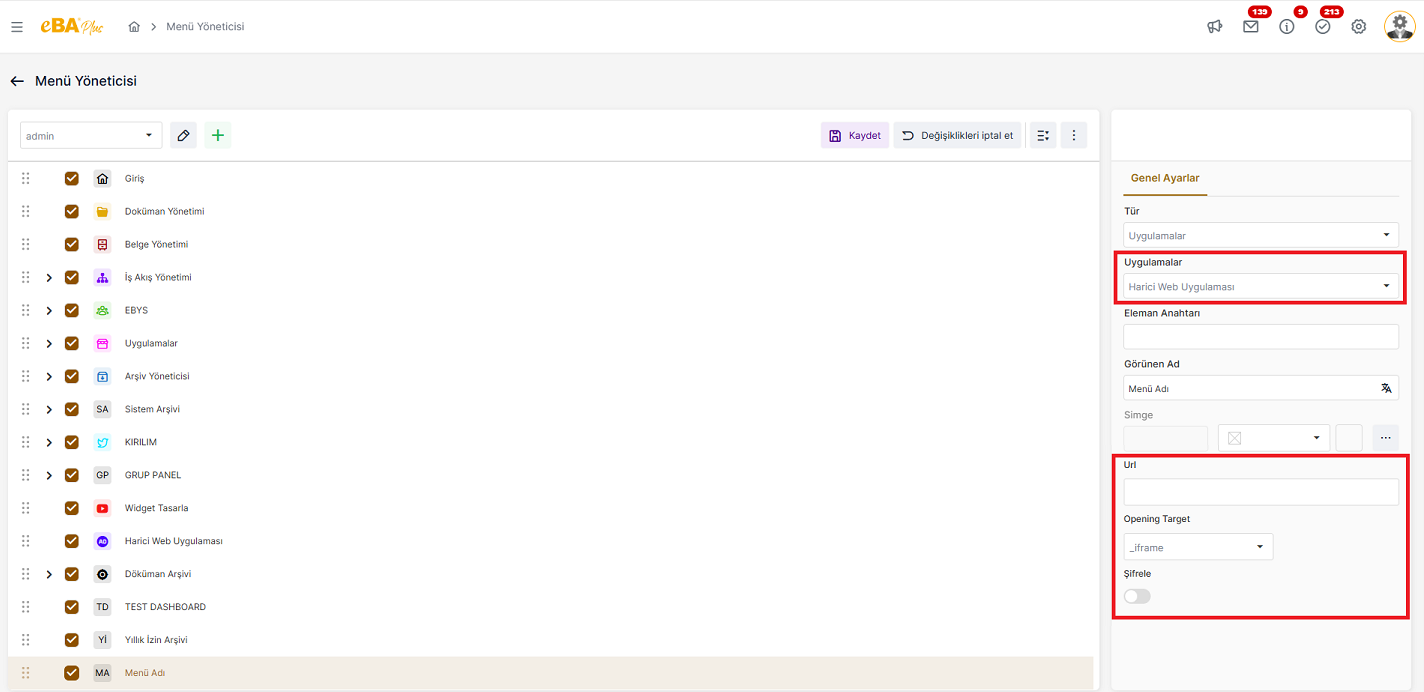
Url : When the relevant menu node is clicked, the link to the external web application that is requested to be opened is entered in this field. should be written.
Opening Target : How to open the external application in eBAPlus option is selected from this field.
Encrypt : If the link to be opened is desired to be opened encrypted, this option is activated.
Archive Manager :
In cases where the data brought by the process and form archives created by the system with standard columns are not sufficient and more complex archive structures are required, such
is used. For archive data and fields needed, System Manager -> Integration Manager
In the field, archive queries are prepared.
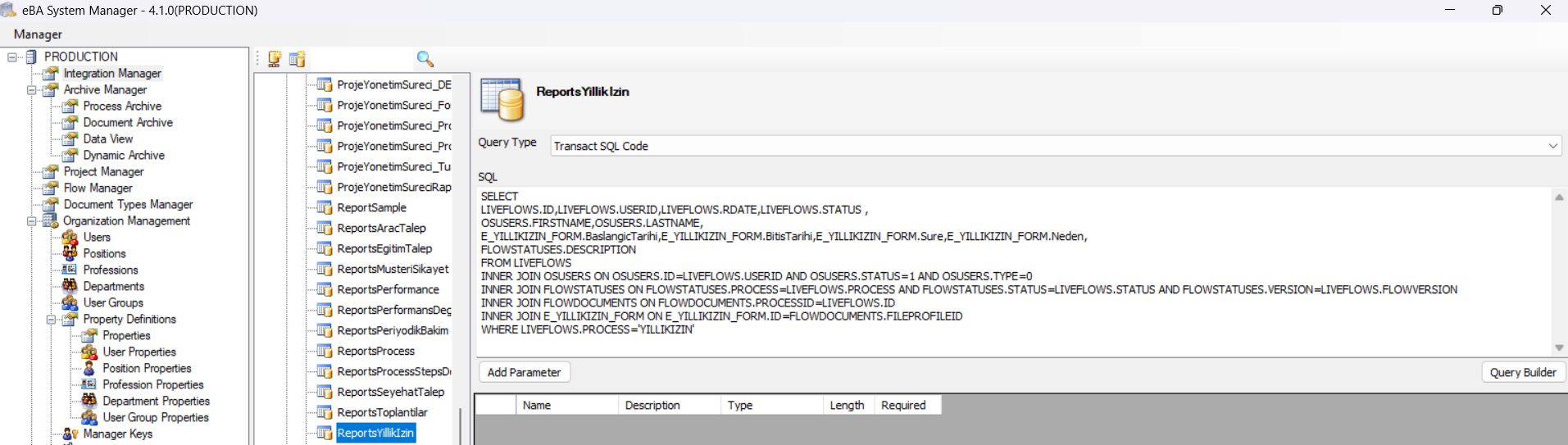
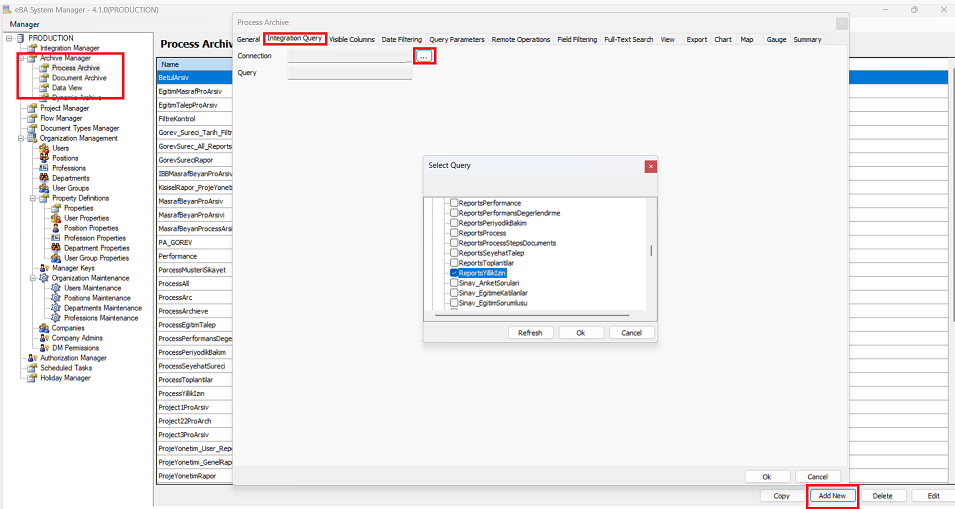
Prepared archive queries are archived under the heading System Manager -> Archive Manager
Adjustments are made by selecting for one of the types and added to the menu node.
A new archive is defined.
When this option is selected in the "Applications" field, the " Archive Type ", " Archives " and " Parameter " fields becomes visible.
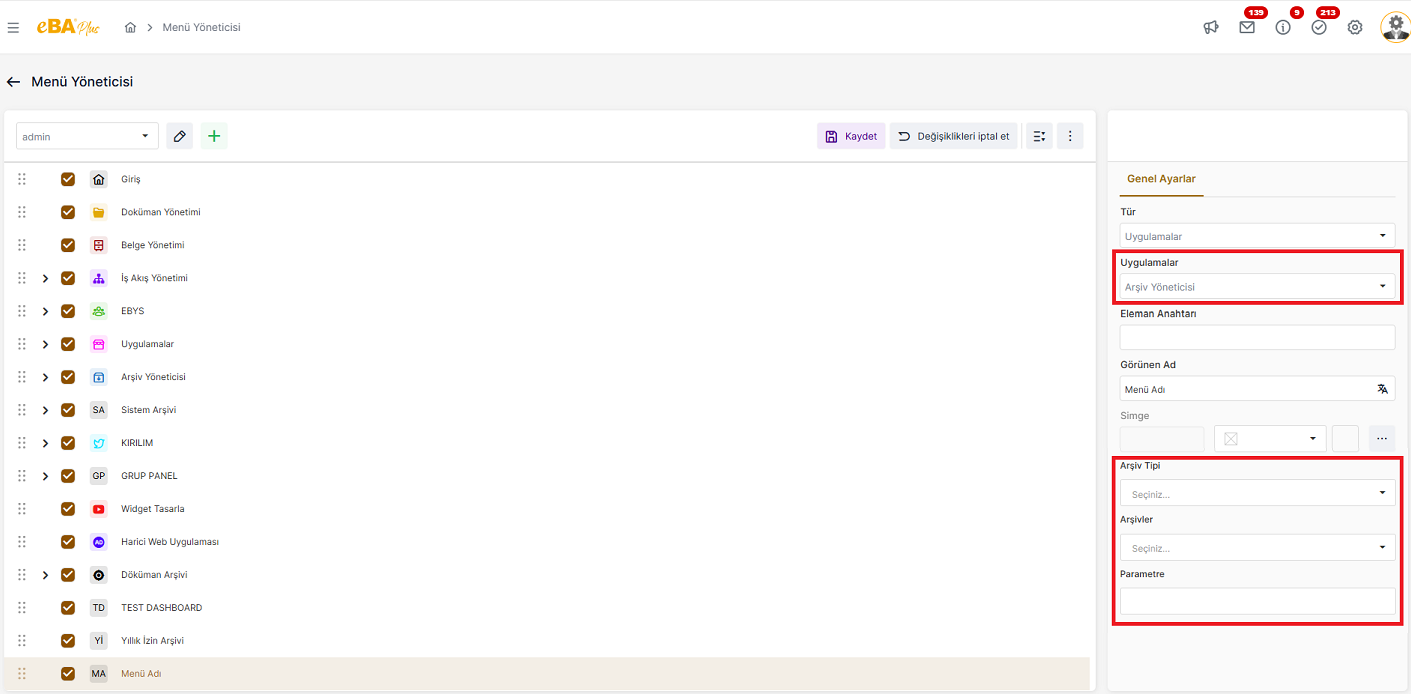
Archive Type : In this field, "Data Display", "Process Archive" and "Document Archive" options are listed. The archive to be added to the menu is created in System Manager in which archive type, this That archive type should be selected from the field.
Archives : In the Archives field, all the archives defined in System Manager belonging to the type selected as the archive type archives are listed. When the menu node is clicked, which archive is desired to be opened from this field. the relevant archive should be selected.
Parameter : If you want to send a parameter to the archive, it is written in this field.
Analysis :
It is the type of node used to extract analysis structures according to the criteria set in the system. When this option is selected in the "Applications" field, you will see " All ", " Custom " and " Analysis Type " areas become visible.
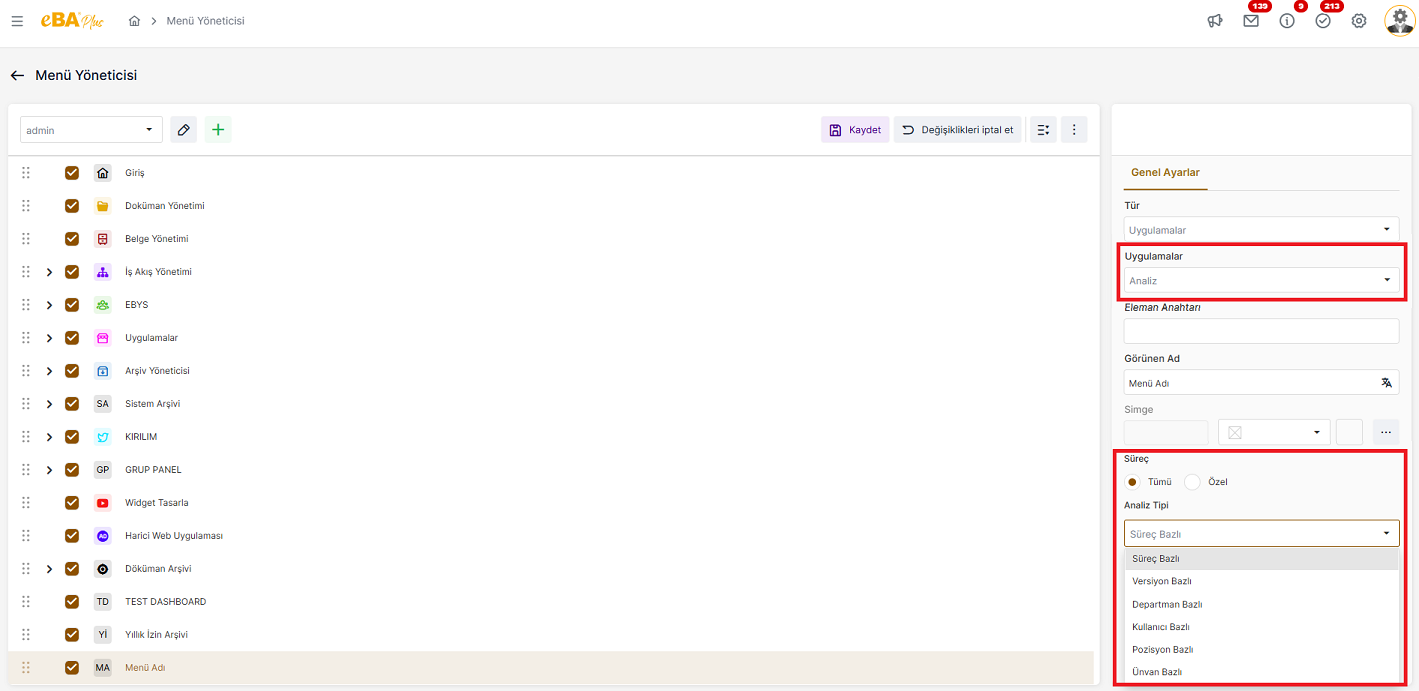
All : If you want to create a structure that lists all values according to the selected analysis type, this option is checked.
Custom : If you want to create an analysis structure that includes certain values according to the selected analysis type, this option is checked.
Analysis Type : In this field, "Process Based", "Version Based", "Department Based", "User Based", "Position Based", "Title Based" options are listed. When the relevant menu node is clicked According to the analysis report to be seen, the analysis type is selected from this field.