Project Manager
All projects created in the system are listed, information and detail settings of the project are It is the screen on which it can be viewed and edited. Only system admins have access to this screen are available.

When a project row is clicked, the "Project Detail " panel will open with the information of that project.
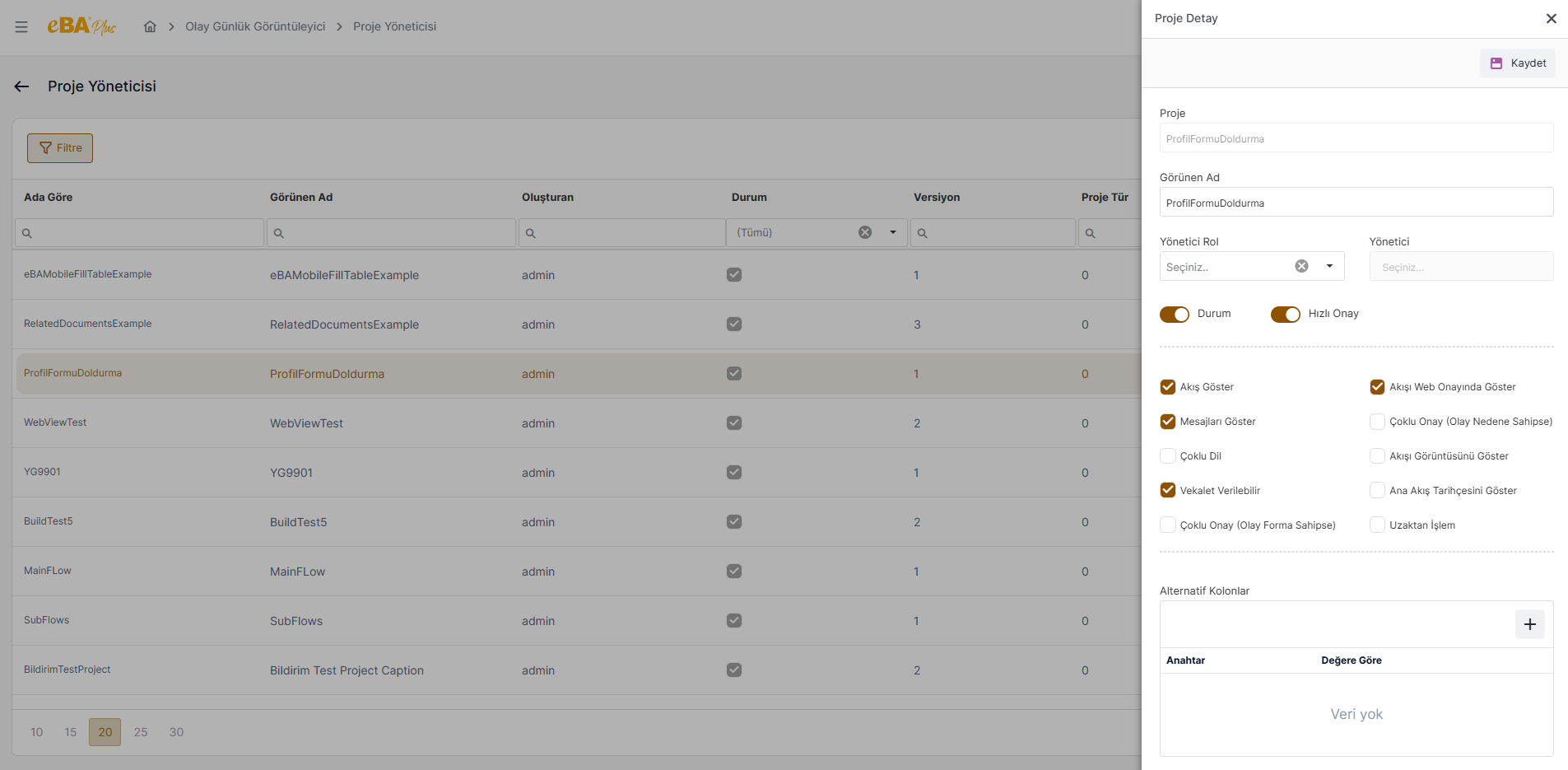
Project : The project name information of the relevant project created by Workflow Studio is shown in this field. This information is only displayed and cannot be changed.
Display Name : The title information of the project is shown in this field. It can be edited.
Administrator Role : If you want to assign an administrator role to the project, the roles defined in the system from this field can be selected from.
Administrator : Based on the role selected from the "Administrator Role" field, which person, department, title, position or It is shown in this field where the group is designated as an administrator.
Status : Whether the project is active or inactive is determined from this field. In a project's web interface It must be an active project in order to be used.
Quick Approval : It is set whether the quick approval feature will be on or off in the relevant project. part. When the quick approval feature is turned on, on the pending approvals screen of the relevant process, the form Quick action can be taken with the event buttons without being displayed. Quick approval feature is turned off For processes with action buttons, the action buttons do not appear in the process line, the person will not be able to take action in the form He has to view it.
Show Flow : The "Flow Chart" icon on the form display screen is displayed, It is the part where it is determined that it will not be shown. The flow chart of the relevant process by end users If it is not desired to be seen, this area is passive.
Show Flow in Web Approval : Approvals of projects with this feature checked will be displayed in the web interface It becomes viewable when the approvals field is clicked. Approvals of projects for which this feature is not selected, check box.
Show Messages : You can see if the messages icon will appear for this process in the web interface. is the feature it is set to.
Multi-Language : This is the area that allows the multi-language feature to be turned on and off in the project.
Power of Attorney Can Be Given : Whether the relevant project can be authorized by proxy to someone else is the part where it is determined.
Show Flow Image : To show flow states in bubbles on the web interface is the activated option.
Show Main Flow History : When this feature is activated in subflow projects, a subflow When the flow history of the process is displayed in the web interface, it is possible to see both the subflow and the The flow history steps of the triggering main flow are visible. While this feature is passive in the subflow project, The flow history of a subflow shows only the flow history steps of the subflow.
Multiple Approvals (If the Event Has a Cause) : On the Approvals screen, multiple pending records are selected and a event. By default, if the Reason field is active in this event, the collective action is not allowed. If multiple actions are desired for events with active Reason field This feature is activated.
Multiple Approval (If the Event Has a Form) : Multiple actions for events with the event form option active If you want to get it, this feature is activated.
Remote Transaction : If you want to use the custom approval query of the relevant project, this field is checked, Instead of the system's default confirmation query, the customized query to be used.
Alternative Columns : If a custom approval query is used for the approvals of the relevant project, the query can be accessed from the This is the part where the column names that are desired to be displayed in the interface can be set to the rotating columns.
Description : If you want to enter a description for the project, write the project description in this field.
Query Selection : If you want to use the custom approval query of the relevant project, for the approval query Integration Manager is also the field where the selected query is made.