eBA Plus AI Chatbot Configuration and Usage Document
This document explains how to make the use of AI Chatbot in eBA Plus work in the system, its use and arguments.
Configuration
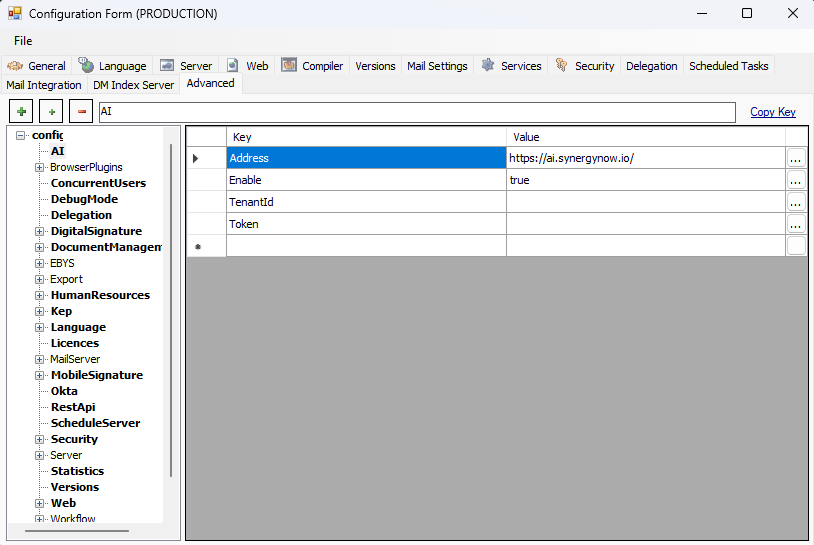
Before starting to use the AI Chatbot in eBA Plus, the 'AI' breakdown must be added via the eBA Configuration Editor and the following values must be entered.
- Enable: true
- Address: https://ai.synergynow.io/
- TenantId: The tenantId value of the relevant customer.
- Token: The value of the token belonging to the respective customer.
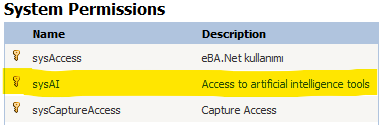
Then, users/roles/authorization groups who want to use the AI Chatbot through eBA System Manager should be given 'sysAI' authorization.
After these settings are made, it is necessary to restart eBA Plus services.
Usage
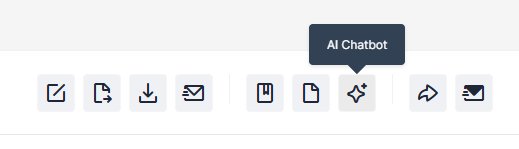
After the above-mentioned processes, the AI Chatbot button will appear on the top menu in the web interface.

When this button is clicked for the first use, the AI User Agreement is displayed before the AI Chatbot. Users who have been authorized to 'sysAI' and who will use the AI Chatbot for the first time must accept this agreement, otherwise the AI Chatbot will not be available.
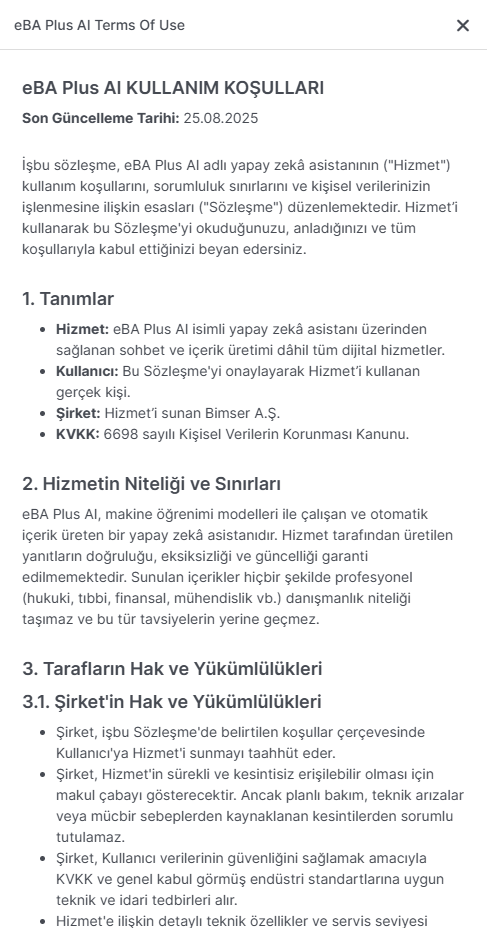
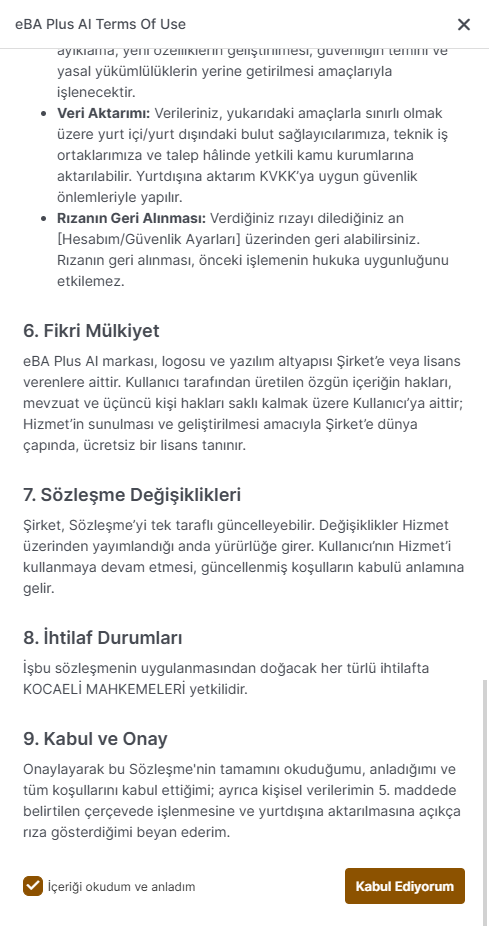
After accepting the AI Terms of Use and clicking the button for subsequent use, the AI Chatbot screen will now open.
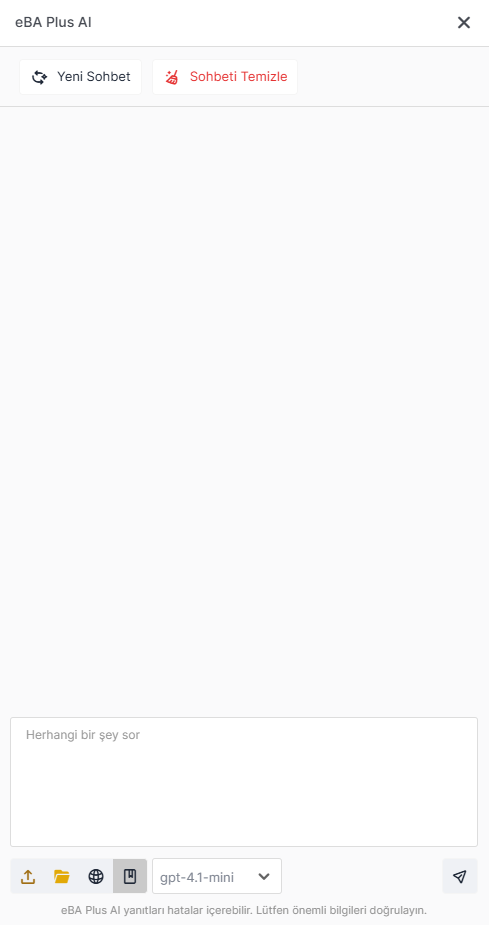
On this screen, the AI Chatbot can be used by typing directly in the field below.
Interface
At the top of the AI Chatbot interface, there are New Chat and Clear Chat buttons.
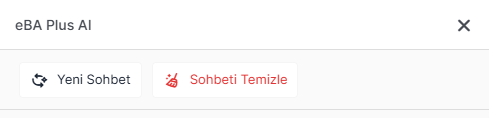
- New Chat: After using the AI Chatbot, you can click this button without closing the AI Chatbot to forget the old conversations.
- Clear Chat: Ensures that conversations present on the screen are cleared after using the AI Chatbot. It does not forget old conversations in the same window.
In the AI Chatbot interface, there are buttons and a selection box under the prompt box at the bottom. The buttons are described below from left to right.

- Upload Files: Allows the AI Chatbot to upload files from a computer to work on them. For example, it may be requested to summarize the uploaded document.
- DM Select File: Allows the AI Chatbot to select files from document management to work on. For example, you may be asked to provide a brief information about the selected document.
- Search the Web: If the prompt entered into the AI Chatbot is a prompt that requires research, this option can be selected and it allows it to search the web as well.
- Search Documentation: If the prompt entered into the AI Chatbot is related to the eBA Plus product, this option can be selected to enable it to search on Docs Bimser.
- Model Selection Box: This is the selection box that specifies which AI model the prompt entered into the AI Chatbot will be run with.
- Send: It is the button that allows the prompt to be sent to the AI after entering the prompt into the AI Chatbot and making the desired settings with the buttons mentioned above.
The documents included in the AI Chatbot appear in the AI Chatbot interface as follows.
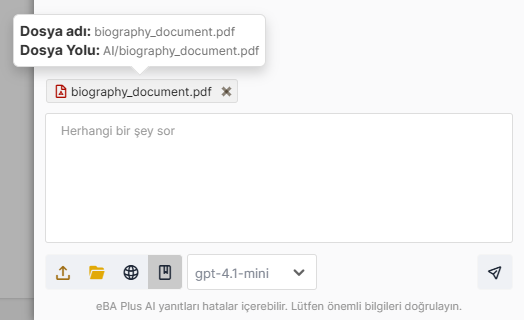
Feedback
After the prompt is sent, a view like the one below will be created.

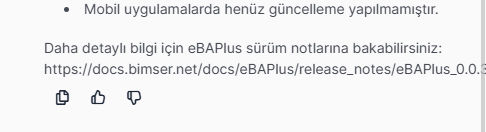
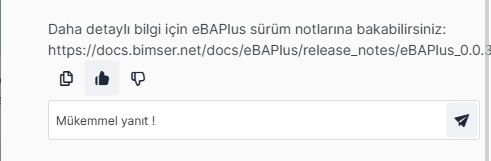
Every new message from the AI Chatbot can be evaluated or copied. For this, the buttons under the response can be used.
Explanations can be entered while evaluating, it is not mandatory.
Document Management
A document opened in document management can be transferred directly to the AI Chatbot with the AI Chatbot button and a chat can be started. It can be used in all documents except attachment.