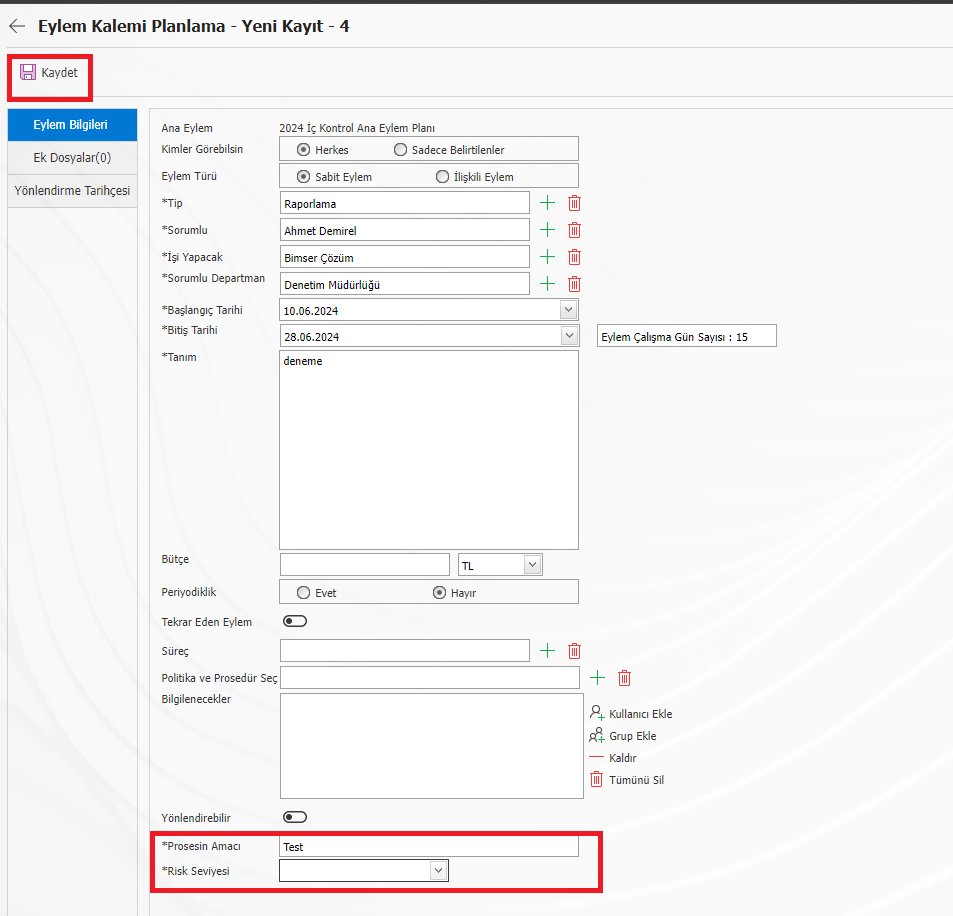
Defining a Parametric Field Linked to the Action Source
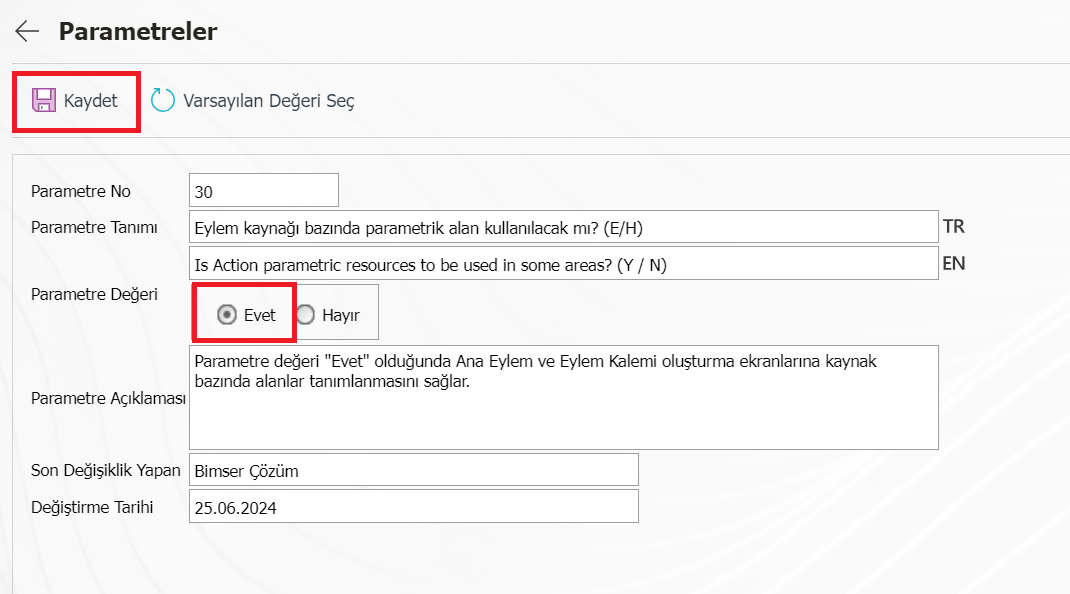
In the Action Planning module, resource-based special fields can be defined for the action items defined in the main action plan, depending on the action source selected in the main action plan. For this, the first step is to open the System Infrastructure Definitions > Action Planning > Action Parameters menu. Search for parameter 30 from the parameter no field. Will parametric field be used on the basis of Action source no. 30? Update the parameter by clicking the change button at the top left. Mark the parameter value Yes and click the save button at the top left.
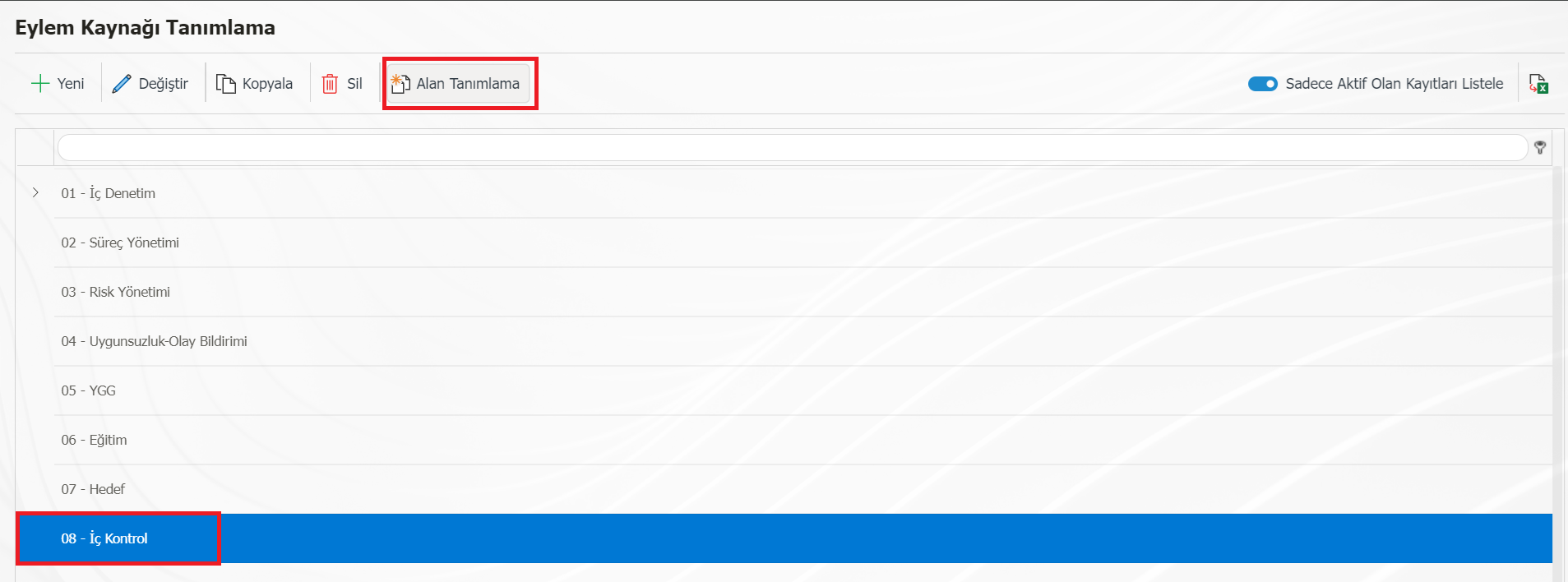
The second step is to identify the source of action. For this, open the System Infrastructure Definitions > Action Planning > Action Source Definition menu. You can define a new source with the new button at the top left or you can define a field for an existing action source that you have previously defined. Select the defined action source in the list and click on the "Field Definition" button in the buttons area at the top.
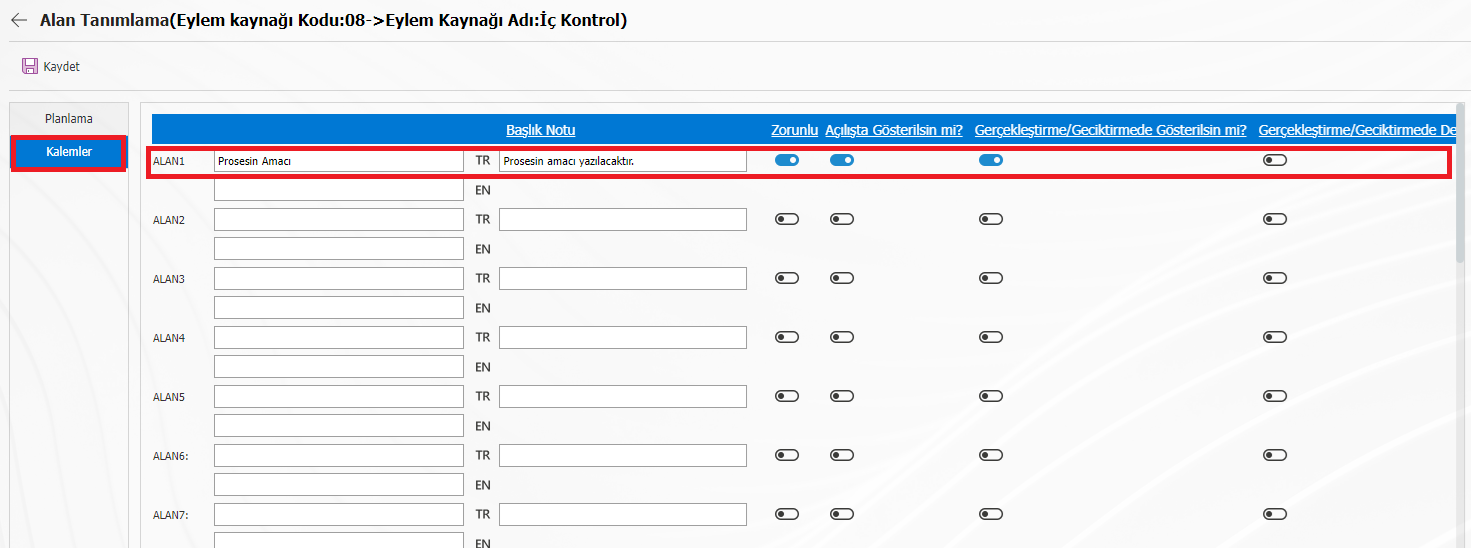
On the page that opens, there are Planning and Items tabs on the left. If you want, you can add special text, list, numeric, department, personnel or query type fields to the Action Master Plan screen or to the Action Item Planning page. For example, on the Action Item Planning page, text and list type fields will be defined to display a special parametric field. Select the Items tab on the left side of the field definition page. In the FIELD1 box, type the name of the "text-typed" field you want to define. You can add a note to the title note field if you wish. You can mark the options on the right side of the page depending on the area you have defined. Determine the sequence number.
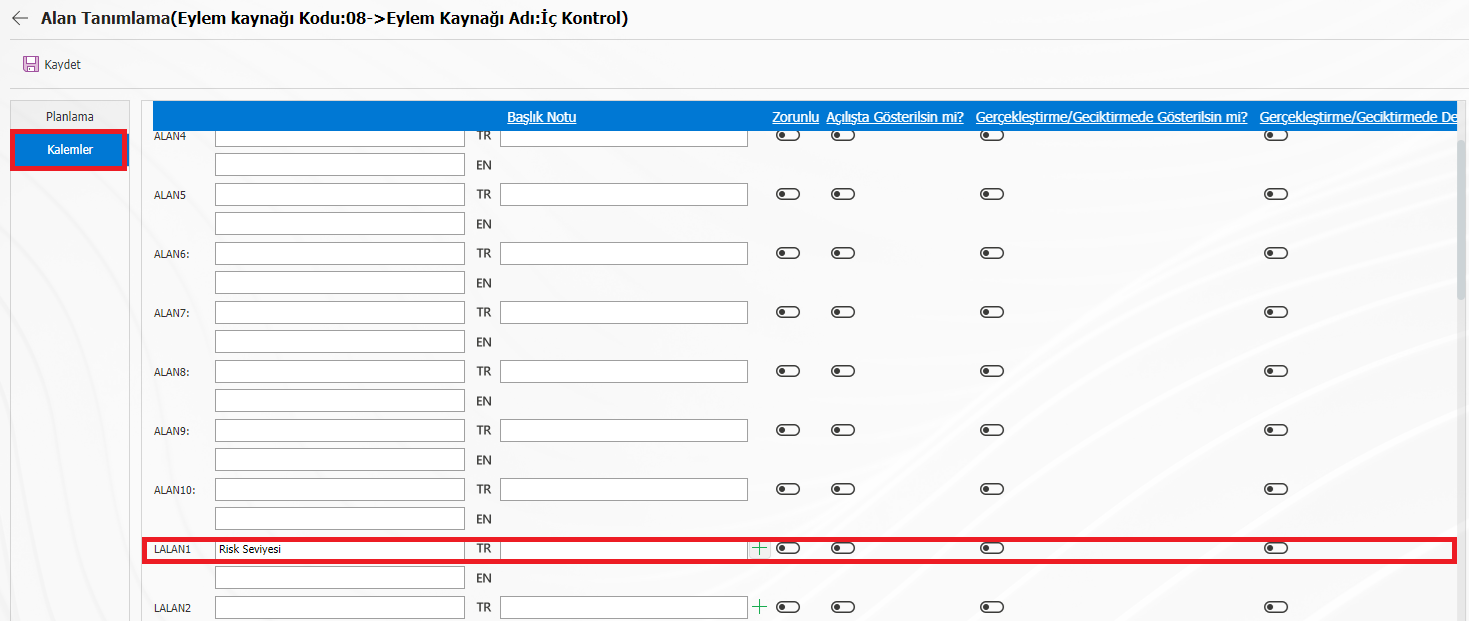
To add a list-type field, make your definition in the LALAN1 field. Save your list values by clicking the + button in the field in the title note column. You can mark the options on the right side of the page depending on the area you have defined. Determine the sequence number.
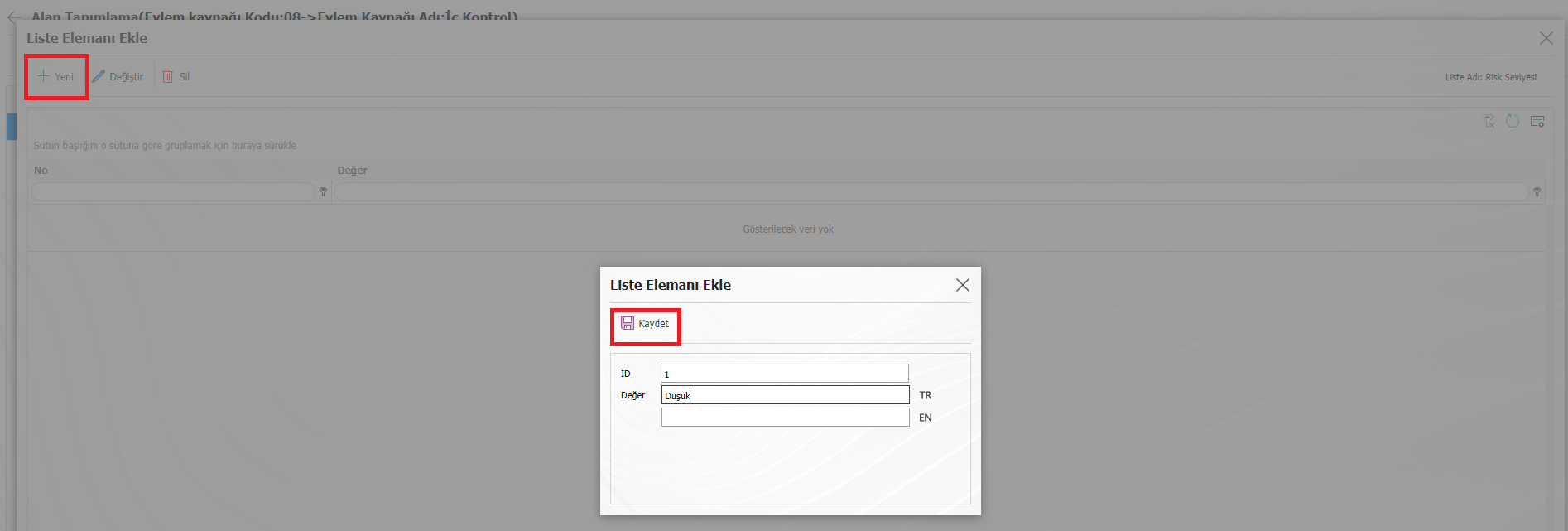
Click the new button at the top left of the Add List Element page that opens and save your list values. You can assign the ID number you want to the ID field.
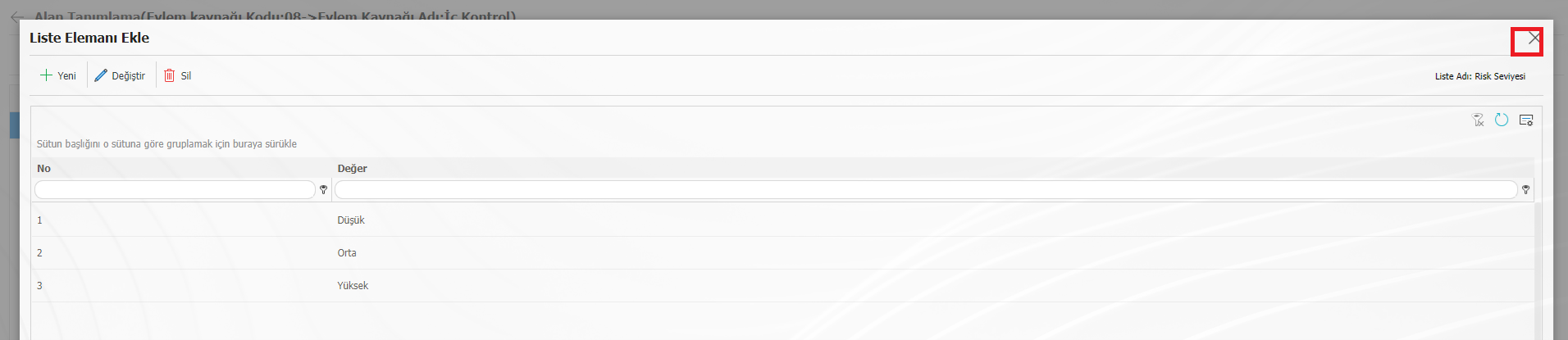
After defining the list elements, close the page with the cross button at the top left. Your list values are defined.
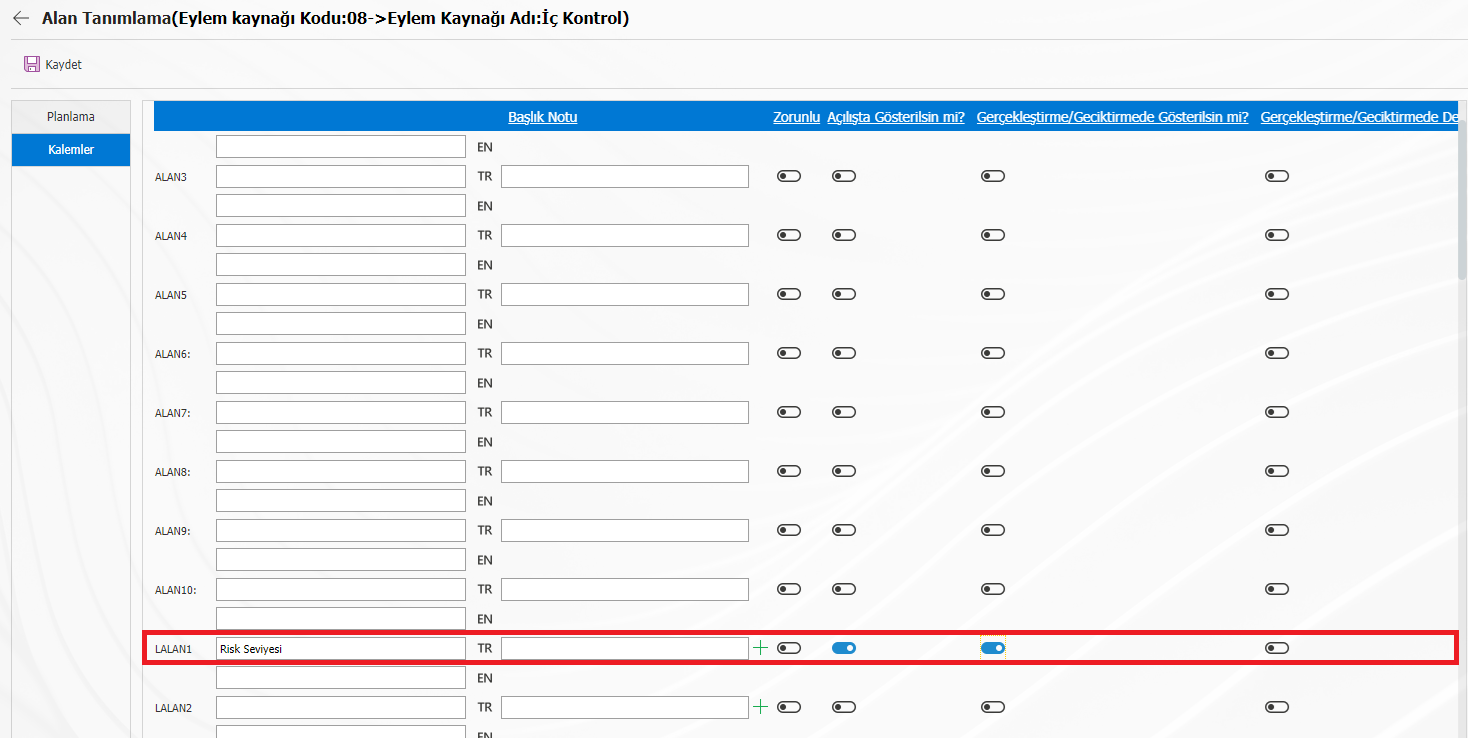
After defining the field definition processes, open the Action Planning > Planning menu > GRC Management System. On the Action Planning page, click the + button at the top left to add a Main Action Plan. On the Action Planning – New Registration page that opens, fill in the relevant fields and save.
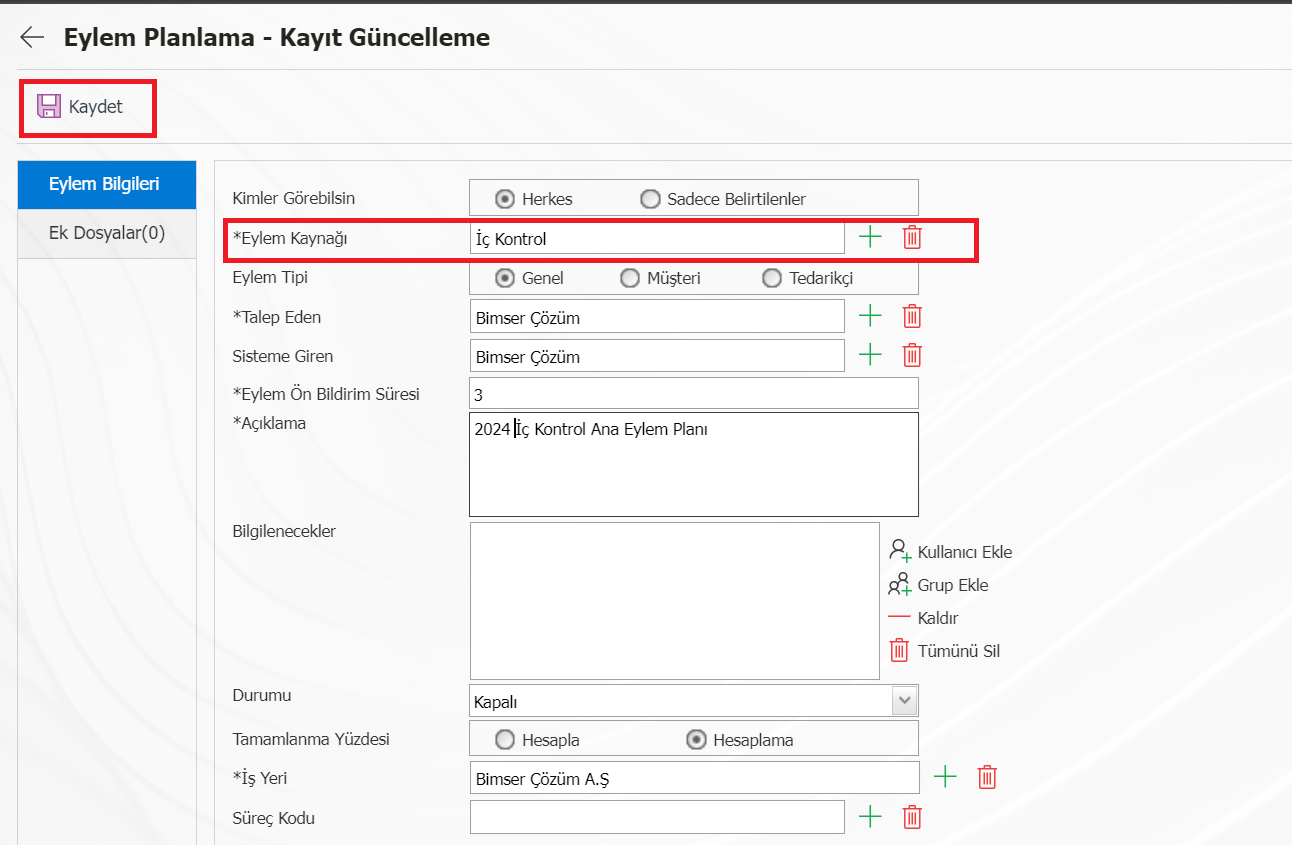
While the main action plan you have created is selected in the list, click on the items button above. Define an action item with the new button. Fill in the relevant fields on the action item planning-new registration screen that opens. At the bottom of the screen, you can view the parametric fields that you have defined depending on the Action Source. These fields will only be displayed when the relevant action source is selected.